CN: A get/change operation on table ‘CN_Letters’ failed accessing SQL data
Symptoms
You receive the following messages when selecting a letter ID in the Collections Management Letter Maintenance window.
A get/change operation on table ‘CN_Letters’ failed accessing SQL data.
Reasons
The following are the possible reasons why this error populated:
- Following the GP upgrade, Collections Management was not correctly upgraded as “sa” from the Collections Management Installation and Registration Window
- A SQL Maintenance needs to be performed on the table related to Collections Letters, the CN00700 table.
Resolution
Please do not proceed until you have made a Backup of your Microsoft Dynamics GP Database, your Company Database and saved a copy of your Microsoft Dynamics GP Folder for safe keeping.
Method 1
Step I
Run the following select statement on your affected company database to retrieve this temporary table CN_Upgrade:
Select * from CN_UPGRADE
Step II
If this SQL statement above, generates any data currently available in the table ( CN_Upgrade), please run the following delete Statement:
DeleteCN_UPGRADE
Step III
Run the Collections Management Installation Steps:
While other users are logged out of Microsoft Dynamics GP, Launch GP as ‘sa’, and then go to the Sales pane —> Utilities —> Collection Installation and Registration—> Click Create/ Upgrade Tables —> Ensure that your Valid Registration Keys and Expiration Date have been entered—> then Click on Install Stored Procedures
Method 2
Step I
In SQL Management Studio, run the following query against your Company database. It will create a backup the current Collections Letters table:
select * into CN00700_BACKUP from CN00700
Step II
Open Microsoft Dynamics GP as ‘sa’ —> go to Maintenance —> Click on SQL —> choose the company database where the issue is occurring—> Select Product: Collections Management —> select the Collections – Letters table—> and then check all the boxes to the right (recompile, update statistics, drop table, create table, drop auto procedure, create auto procedure) and click Process:

You will know this process completed successfully if you can run the following script against the company database and see all the columns. No data should currently be showing:
select * from CN00700
Step III
In SQL Management Studio, complete the following steps:
Step III.1
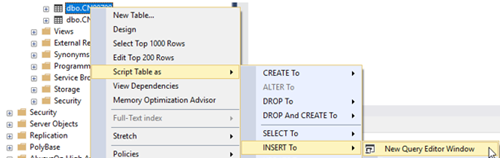
Script the CN00700 table as an “Insert To” as shown below
and
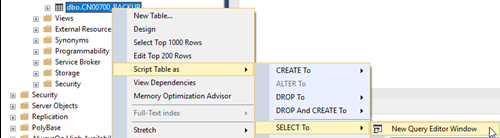
the CN00700_ BACKUP as a “Select To” as shown below
CN00700 “Insert To”Script as
CN00700_Backup “Select To” Script As
Finally, create the SQL Script to include both the Insert statement from the CN00700 and the Select statement from the CN00700_Backup, ensuring that the content of the “insert into” columns matches the number of columns of “the select to” columns.
The generated SQL script will be similar to this SQL script shown below.
Once generated, please run your created SQL Statement in the company database selected in this Step II above, where you have experienced this issue.
INSERT INTO [dbo].[CN00700]
([Letter_Type]
,[LTRRPTNM]
,[LTRDESC]
,[Hide_in_lookup]
,[CN_Print_Using_Report]
,[Action_Promised]
,[CN_Email_Subject]
,[CN_Word_Letter]
,[CN_Word_Document_File]
,[CN_LetterPerAddress]
,[InvoicesToAttach]
,[CN_CopySalesperson]
,[CN_Letter_Text])
SELECT [Letter_Type]
,[LTRRPTNM]
,[LTRDESC]
,[Hide_in_lookup]
,[CN_Print_Using_Report]
,[Action_Promised]
,[CN_Email_Subject]
,[CN_Word_Letter]
,[CN_Word_Document_File]
,[CN_LetterPerAddress]
,[InvoicesToAttach]
,[CN_CopySalesperson]
,[CN_Letter_Text]
FROM [dbo].[CN00700_BACKUP]
GO
Once complete, log back into GP and confirm if the error still occurs.
CATEGORIES:
TAGS: