Example of Advanced Query in Collections Management
Now, when running an Advanced Query inside of Collections Management, you may be asking yourself, am I supposed to input a SQL Select statement into the window? If so, against which table?
The Advanced Query functionality can be accessed by navigating to the Build Query window (Transactions – Sales – Build Query). Here, select the ‘Advanced’ radio button:
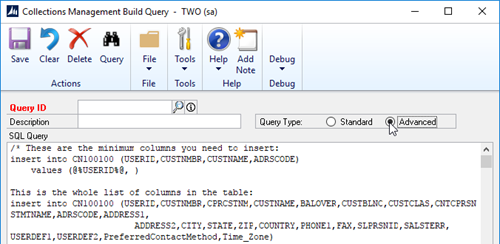
The advanced query will be an insert statement into the CN100100. The required columns in the insert are below:
(USERID,CUSTNMBR,CUSTNAME,ADRSCODE)
The additional columns available are in the initial text that appears when you access the advanced query:
USERID,CUSTNMBR,CPRCSTNM,CUSTNAME,BALOVER,CUSTBLNC,CUSTCLAS,CNTCPRSN,STMTNAME,ADRSCODE,ADDRESS1,
ADDRESS2,CITY,STATE,ZIP,COUNTRY,PHONE1,FAX,SLPRSNID,SALSTERR,USERDEF1,USERDEF2,PreferredContactMethod,Time_Zone)
The Advanced Query can be used to restrict the customers retrieved by a query with anything that can be scripted into an insert statement for the CN100100 table.
For example, the following statement will restrict on the Salesperson ID (SLPRSNID) , Aging Period (AGPERAMT_X), and Customer Class (CUSTCLAS).
Example:
insert into CN100100
(USERID,CUSTNMBR,CUSTNAME,ADRSCODE)
(select
'@%USERID%@',
RM00101.CUSTNMBR,
CUSTNAME,
ADRSCODE
from RM00101
left join RM00103
on RM00101.CUSTNMBR = RM00103.CUSTNMBR
WHERE RM00101.SLPRSNID NOT Like('GR') AND(RM00103.AGPERAMT_3 > 5 or RM00103.AGPERAMT_4 > 5 or RM00103.AGPERAMT_5 > 5) AND RM00101.CUSTCLAS not like('FRCHSMRCSC','FRCHSMRC','FRCSHPF','FRCHSPF'))
CATEGORIES:
TAGS: