Columns are Misaligned in Collections Management Emails
The Collections Management Email window may have columns where the spacing looks correct, but the actual email itself does not reflect that same spacing. It is important to know that this is related more to the nature of email messages and font typefaces that are outside the direct control of Collections Management.
In the Collections Management Email window, everything is aligned. This is because the window font is monospaced. The internet has substantial information about monospaced fonts versus proportional fonts, and to give a brief example:

The first one is font size 10 Consolas font, the second is font size 11 Times New Roman. Each of the characters in the monospaced font, including spaces, use the exact same amount of horizontal width. The proportional font, however, has characters that use less horizontal width such as a space or the letter “i" so it comes out smaller, even at a larger size print.
The reason why the Collections Management Email window looks good when creating columns is that it is using a monospaced font, and the spaces are the same predictable size. The email might show variable width columns because it is using proportional fonts and so the spacing is unpredictable. In fact, monospaced fonts will always have great spacing no matter what font type it is, and proportional fonts will always vary from font to font; it all comes down to how the fonts themselves are created by their authors. This is the same reason why printed forms are usually filled out with monospaced fonts, the most popular of which typically resemble a typewriter font, though that is not a requirement of monospaced fonts: predictability in how many characters can fit in a given width of space.
You can try to alleviate this in the following manner.
- In Outlook, File >> Options >> Mail >> Stationary and Fonts...
- Click through each of the Font buttons and set to Courier New
- These steps should be repeated on every workstation that will be sending out Collections Management letters
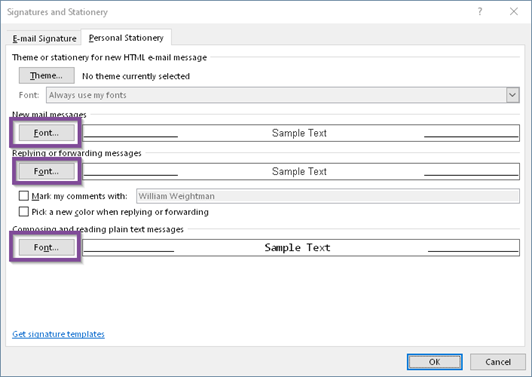
If those changes still do not produce the desired results, you may need to add some character padding (think of these as extra spaces) to help accommodate a document with a longer name than the others. To do so, please refer to the Collections Management help file (load any Collections Management window in Dynamics GP and press the F1 key) and review the Letter function in question you are using, and make sure you put in a number in the padding field to add spaces.
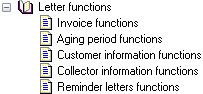
For example:
@%AllInvoices,10,1,0%@
10 is the extra padding in this case, meaning 10 extra spaces. The field you need to change varies by function, so make sure to consult the Help file, always looking for the value “Pad.”
CATEGORIES:
TAGS: