Collections management needs to be installed or upgraded
Symptoms
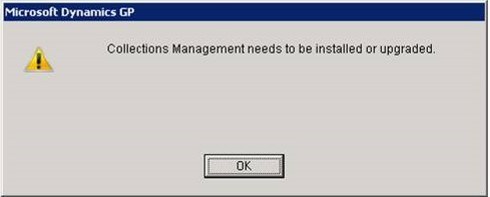
After downloading and installing a new build of Collections Management, when launching Microsoft Dynamics GP®, you receive the following message as shown below:
Collections Management needs to be installed or upgraded.
Reason(s)
After installing the new build of Collections Management, the SA user did not perform the installation steps from the Collections Management Installation and Registration Window.
And/ Or
A Grant SQL has not been run on the Dynamics Database and the company database.
Resolution
To resolve this issue, please complete the following steps:
While other users are logged out of Microsoft Dynamics GP
Launch Microsoft Dynamics GP as System Administrator (SA)
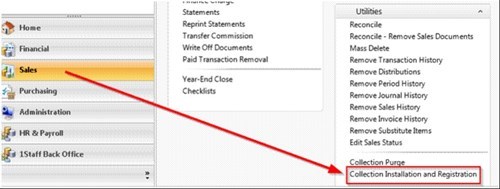
Go to Sales pane —> Utilities —> Collection Installation and Registration
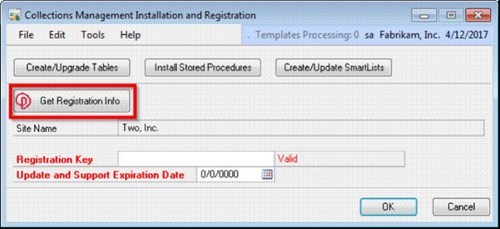
From the Collections Installation and Registration window:
A. Click Create / Upgrade the tables (if you are on the OEM Build of Collections, you will be prompted to remove Collections from the Dynutils, Click Yes)
B. Enter your registration keys and expiration date ( You will be able to access your registration keys by clicking on the ”Get Registration info button” shown below or retrieving them at the following website http://papayments.cloudapp.net/gen/)
C. Click on Install stored procedures, and Create / Update SmartLists.
Please note that you will need to repeat this step once in each Company Database. To complete this log out of the current company database you are currently logged in and complete the same steps in the additional company databases.
These steps above should resolve the issue for both the SA user and other end users, however if the issue persist for other users other than the SA user, please run a Grant SQL by proceeding as follow:
To complete this you will need access to Microsoft SQL Server Management Studio
While other users are logged out of Microsoft Dynamics GP
Please go to your Microsoft dynamics GP folder
In the Util subfolder (Microsoft Dynamics\GP 2010 or GP2013 or GP2015\SQL\Util), please Double click it on Grant as "SA"
Run this Grant SQL against all of your company databases and your Dynamics Database.
CATEGORIES:
TAGS: