Create Reminders Associated with Overdue Documents and Register a Payment to Complete the Reminder
By Professional Advantage Thursday, July 16, 2020
Create Reminders Associated with Overdue Documents and Register a Payment to Complete the Reminder.
Step 1
- On the Home Page, click on the Sales dropdown
- Select Customers
- Click on Customer No. 30000 (School of Fine Art)
- Under the General section, Collector = TEAMMEMBER
- Under the Payments section, Reminder Terms Code = FOREIGN
- Exit the Customer window
- Click on Customer No. 40000 (Alpine Ski House)
- Under the General section, Collector = TEAMMEMBER
- Under the Payments section, Reminder Terms Code = FOREIGN
- Exit the Customer window
- Search for Reminders
- Click on Reminders – Lists
- Click on the Process dropdown
- Select Create Reminders
- Select TEAMMEMBER under Filter: Customer
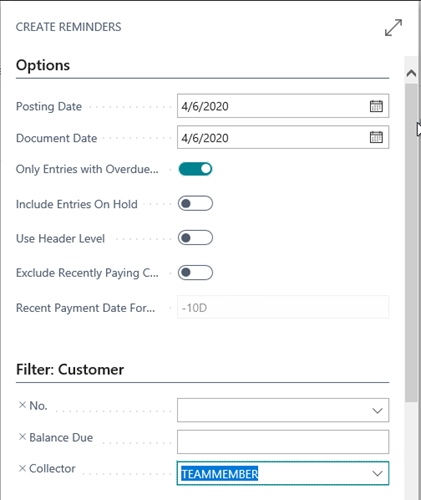
Step 2
- Click OK
- This will create Reminders associated with both customers that have TEAMMEMBER assigned as Collector

Step 3
- Click the Process dropdown
- Click Issue
- Click the ellipses between No. and Customer No.
- Click Select More
- Mark the checkbox on the header line to mark both Reminders:

Step 4
- Click the Process dropdown
- Click Issue
- Within the Issue Reminders Report Viewer, select Print
- Click OK
- Search for Register Customer Payments
- Click on Register Customer Payments – Tasks page
- Mark Payment Received for Invoice No. ‘’ for Customer No. 40000
- Click on the Post dropdown
- Select Post Payment
- Click OK
- Close the Reminders page
- Navigate to the Home Page
- Search for Register Customer Payments
- Click on Register Customer Payments – Tasks
- Click OK within the Edit – Payment Registration Setup window
- Mark the Payment Made checkbox for the following lines:
- Invoice S-INV102180 for Customer No. Alpine Ski House
- Invoice S-INV102196 for Customer No. School of Fine Art
- Click on the Posting dropdown
- Click on Post Payments
- Click Yes when prompted to post the 2 payments
- Exit the Register Customer Payments window
- Search for Issued Reminders
- Click on Issued Reminders – Lists
- Note that the Reminder created for Customer No. 40000 is now in a status of Complete and the Reminder created for Customer No. 30000 is in a status of Partial.
CATEGORIES:
TAGS: